Once a client sends you an offer, you’ll need to decide if you want to accept it and start working or decline it if it doesn’t fit your expectations. Here’s how to review and accept an offer:
Step 1: Go to “Proposed” Tab
- Navigate to your Job Applications page.
- Click the “Proposed” tab to view jobs you’ve applied for.
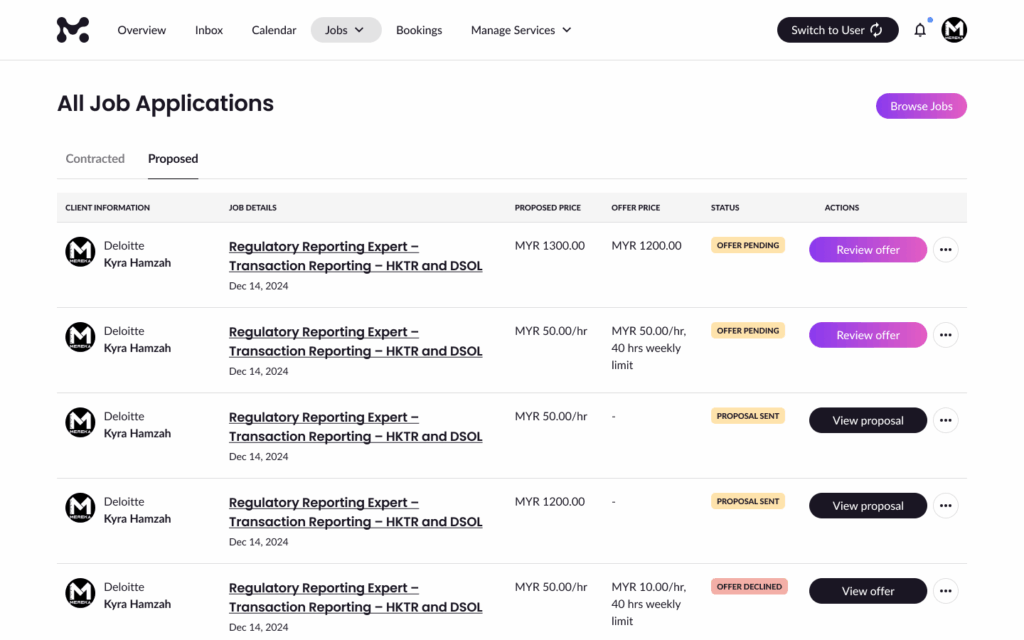
Step 2: Click “Review Offer”
Find the job offer you want to respond to and click “Review offer.”
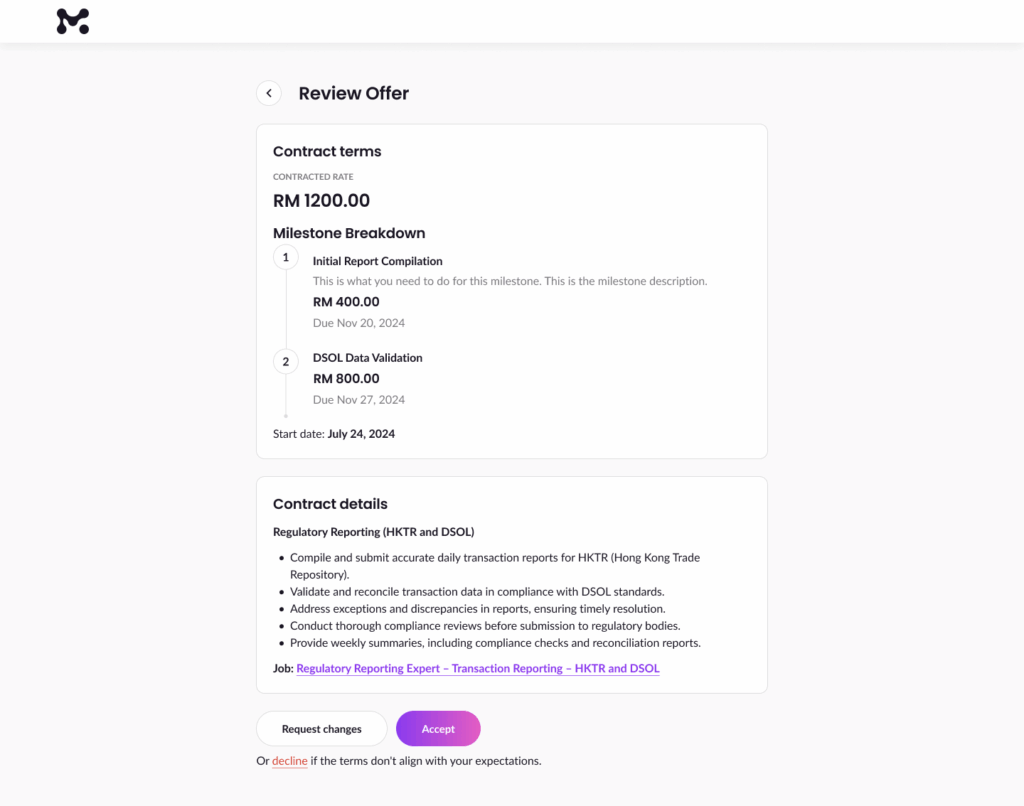
On the Review Offer page, you’ll see:
- Contract terms: The total payment and milestones or hourly rates.
- Milestone breakdown: Tasks, amounts, and due dates (for fixed-price contracts).
- Contract details: Scope of work and requirements.
Read everything carefully to make sure you’re happy with the terms.
Step 3: Click “Accept”
If everything looks good:
- Click the “Accept” button.
- A confirmation pop-up will appear where you can add a quick note to the client, such as “Thank you for the opportunity! Looking forward to working together.”
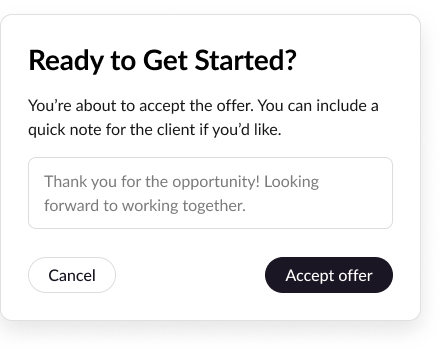
- Click “Accept offer” to confirm. The contract will begin, and you can start working right away.
Step 4: Check Your Inbox
After accepting the offer:
- The contract will officially start.
- You’ll see a confirmation message in your Inbox chat with the client, showing that the contract has started and your note has been sent.
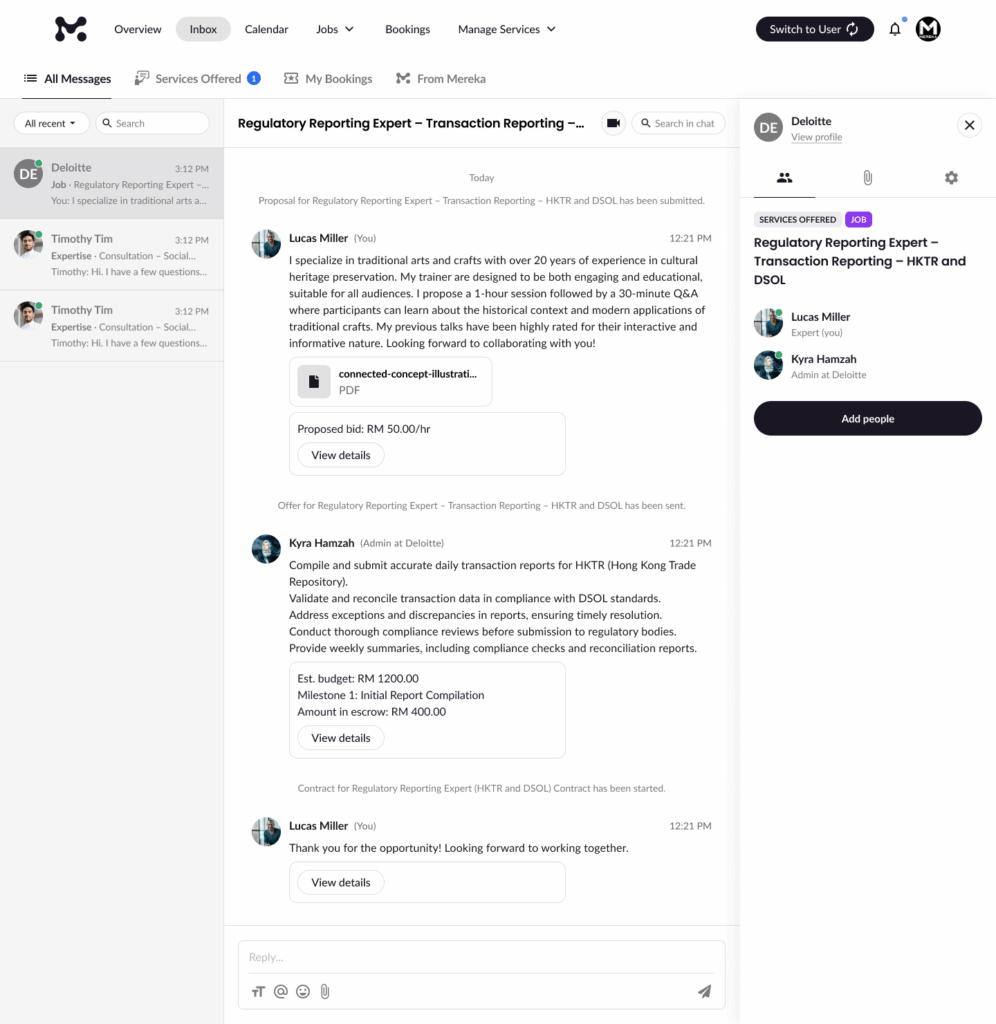
You’re now ready to begin your work!
💡 Tips
- If you need adjustments, you can always request changes before accepting. Learn how to request changes here.
- Always review milestones, deadlines, and payment amounts to avoid misunderstandings later.
That’s it! Now you know how to accept offers with confidence. If you need support, our team is always here to help.