When you’re ready to hire an expert for a fixed price job, you’ll need to fund the project before your offer can be sent. Depending on your account type and whether your offer has milestones, the funding steps will be slightly different.
Let’s walk through each case.
If You’re a Subscriber (Expert on the Platform)
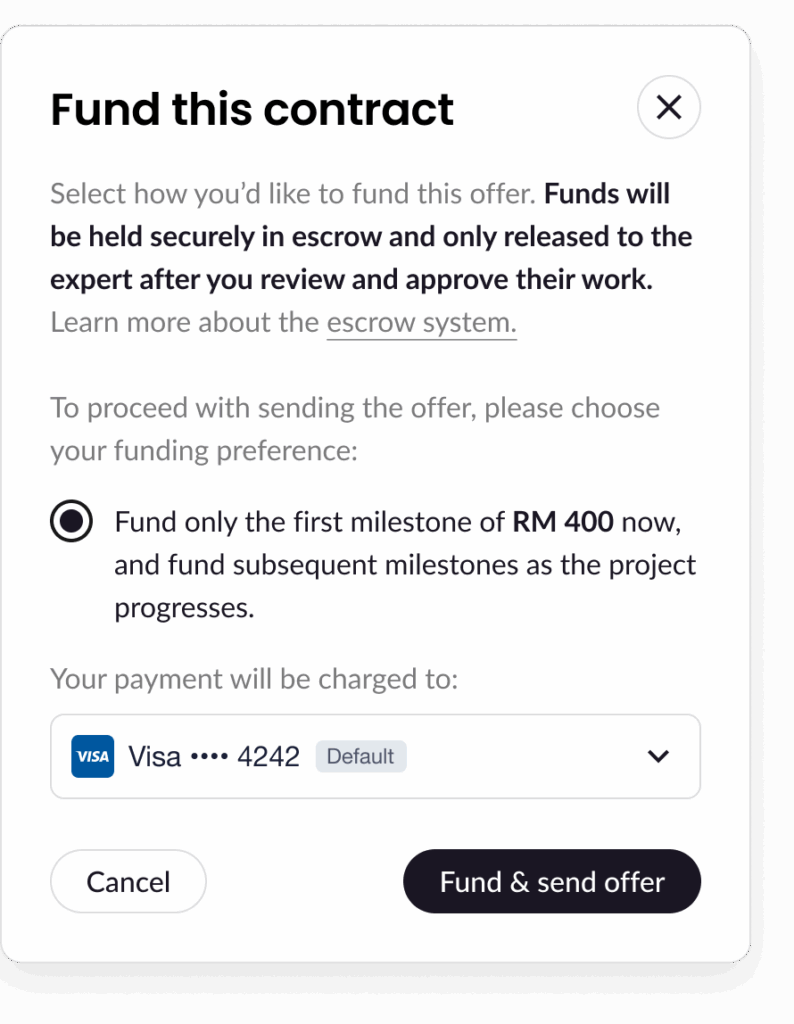
You’re Offering a Milestone-Based Project
- Click Send Offer.
- A pop-up titled “Fund this contract” will appear.
- You’ll see the option to fund the first milestone (this is selected by default).
- Your saved payment method (credit/debit card) will appear.
- Click Fund & Send Offer to confirm.
✅ Your offer is sent, and the first milestone is funded.
You’re Offering a One-Time Project (No Milestones)
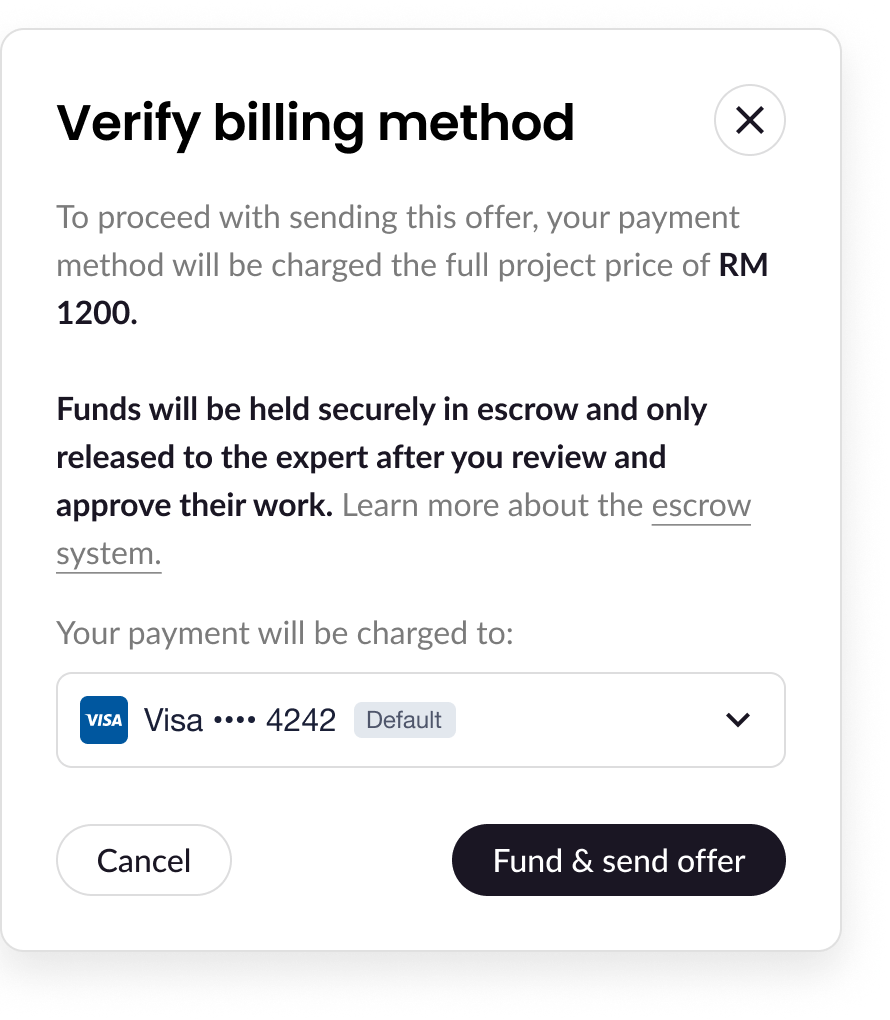
- Click Send Offer.
- A pop-up titled “Verify billing method” will appear.
- You’ll see the full project price and your saved payment method.
- Click Fund & Send Offer to confirm.
✅ Your offer is sent and the full project is funded.
If You’re Not a Subscriber (Job Plan User)
You’re Offering a Milestone-Based Project
- Click Send Offer.
- A pop-up titled “Fund this contract” will appear.
- You’ll be asked to fund the first milestone.
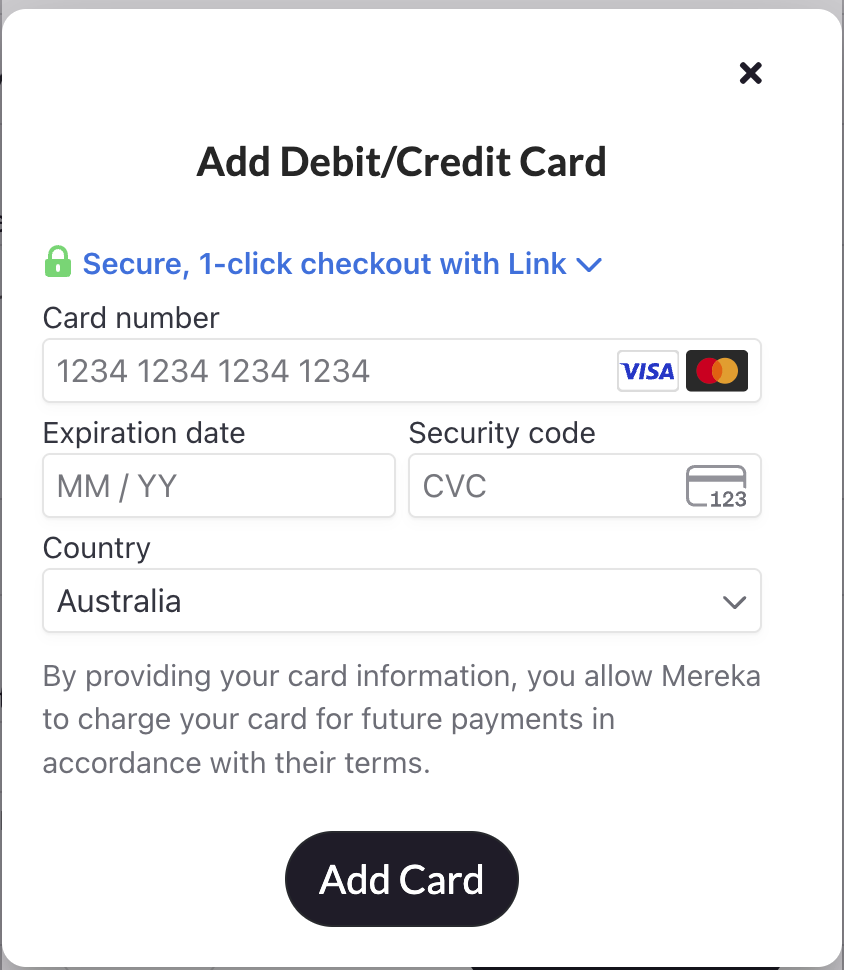
- Click Add Payment Method to continue.
- You’ll see a pop up to add your card details.
- After your card details is added, click Fund & Send Offer.
✅ Your offer is sent and the first milestone is funded.
You’re Offering a One-Time Project (No Milestones)
- Click Send Offer.
- A pop-up titled “Fund this contract” will appear.
- You’ll be asked to fund the full project price.
- Click Add Payment Method to continue.
- You’ll see a pop up to add your card details.
- After your card details is added, click Fund & Send Offer.
✅ Your offer is sent and the full project is funded.
💡 Note: You’ll only be charged for what you fund (just the first milestone). The rest can be funded later as the project progresses.
Need help? Our support team is always here if you have questions during this process!