Once experts start applying to your job post, you can easily review their proposals and move forward with the one that fits best. Here’s how to go from proposal review to sending an offer.
Step 1: View Submitted Proposals
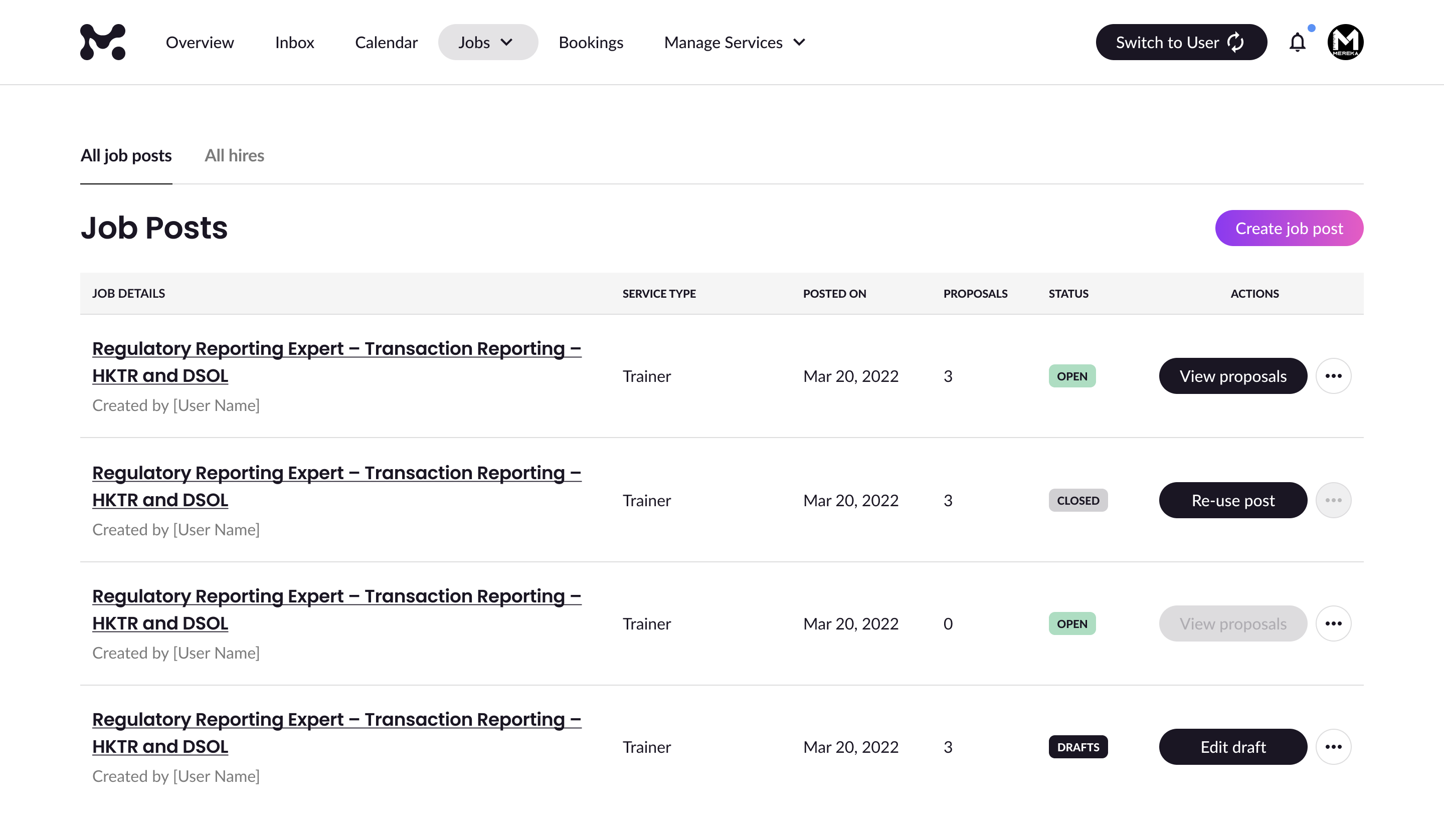
From the All Job Posts tab, click on any job listing and then select the View Proposals button.
You’ll be taken to a list of proposals submitted for that job. Click on any proposal to open the Review Proposal page.
Step 2: Review the Proposal
On the Review Proposal page, you’ll see:
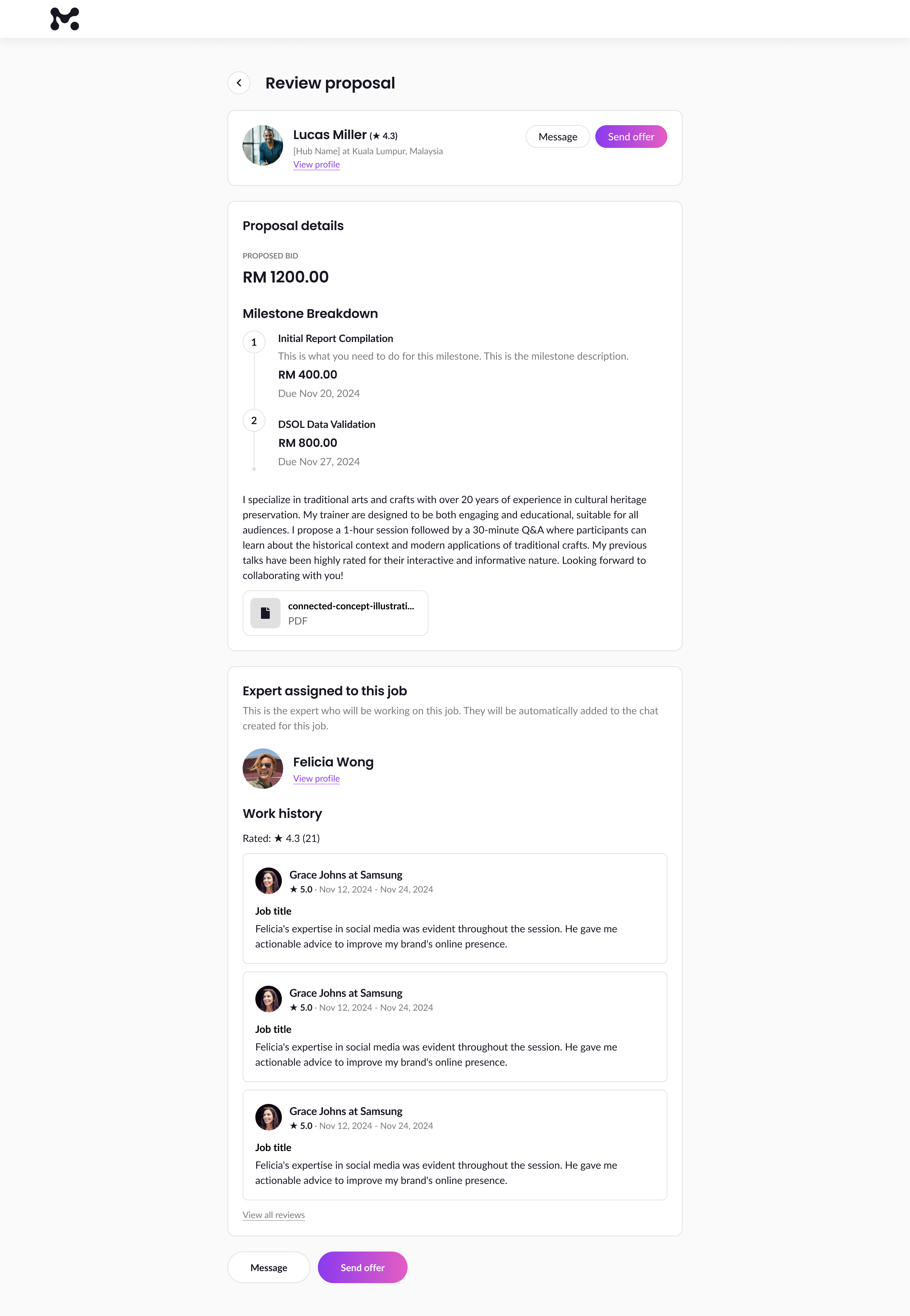
Applicant Information
- Expert’s profile photo
- Expert name
- Overall rating
- Location & Hub Info
- View Profile button
Proposal Details
- Proposed Bid
- Milestone Breakdown (if included by the expert)
- Proposal Description
- Attachments (if any)
Assigned Expert
If the job will be completed by someone other than the applicant:
- You’ll see their profile photo, name, rating, and a View Profile button
Step 3: Contact or Proceed
At the bottom of the page, you’ll see:
- Message: Start a chat with the expert
- Send Offer: Ready to hire? Click this to proceed
Step 4: Fill in Offer Details
Clicking Send Offer will open the Send Offer page.
Contract Terms
- Payment Option: Fixed Price or Hourly Rate
- Start Date
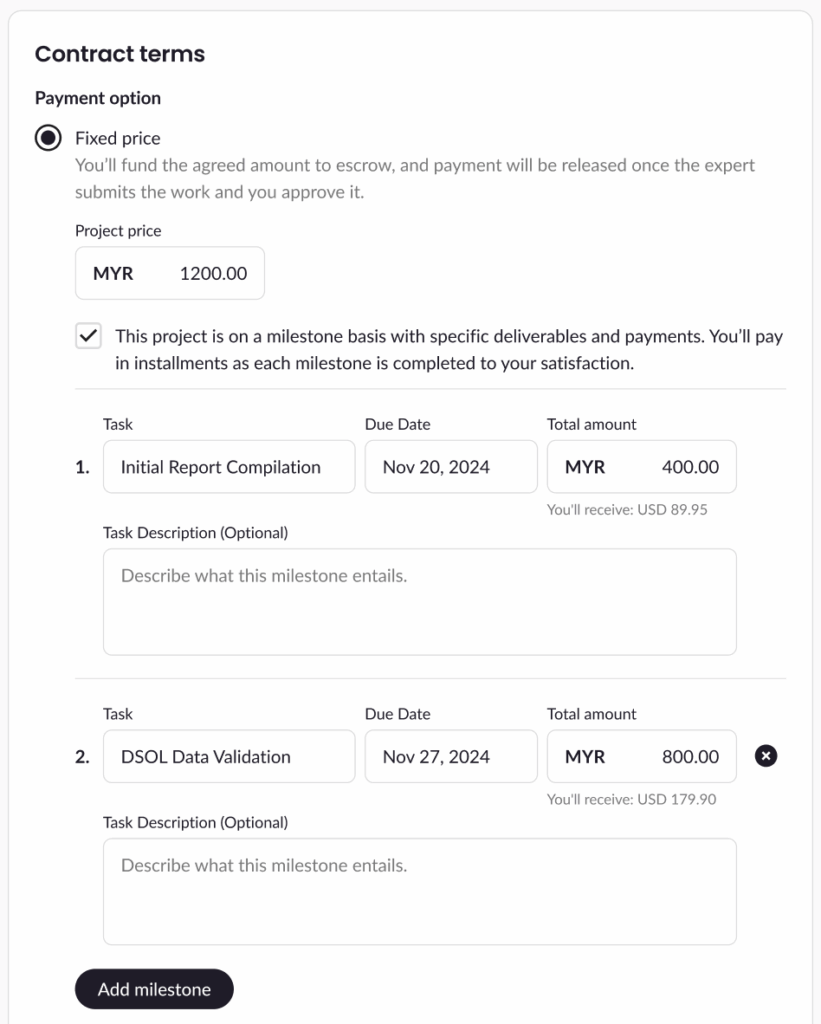
If You Select Fixed Price
You will see these following fields to fill:
- Project Price
- Milestone Option (optional)
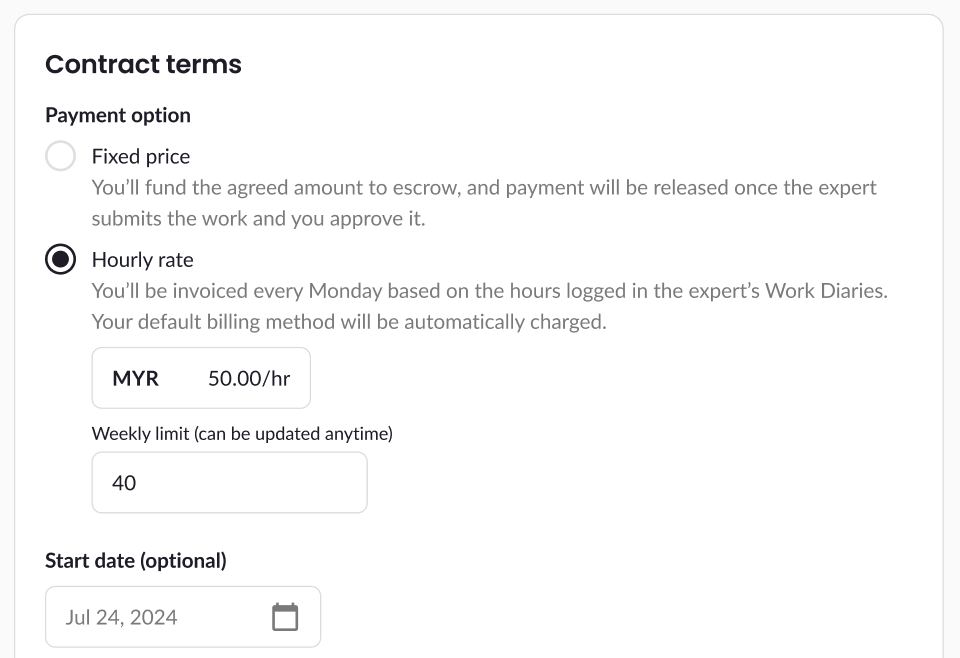
If You Select Hourly Rate
You will see these following fields to fill:
- Hourly Rate
- Weekly Limit: Max allowed 168 hours/week
- Max Rate/Week: Automatically shows your
Hourly Rate × Weekly Limit
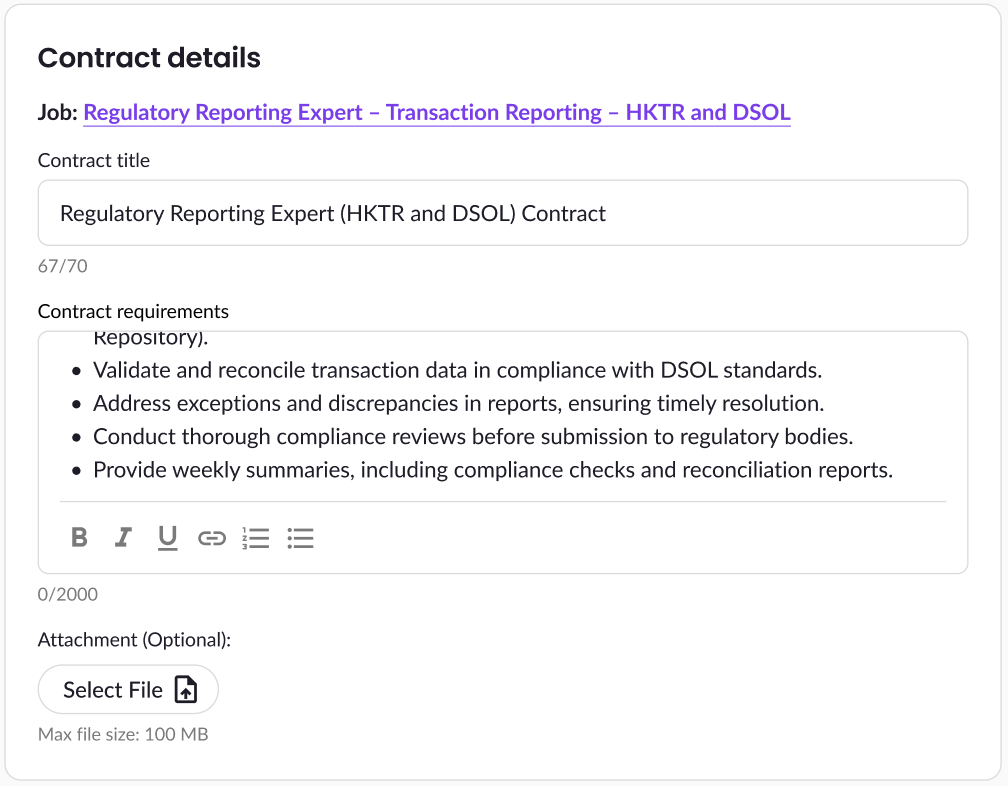
Contract Details
- Job
- Contract Title
- Contract Requirements
- Attachment (optional)
✅ Final Steps
Click Send Offer button to proceed sending the offer to the expert and you’ll be guided to fund the project. Refer to these articles for both fixed price and hourly contract:
Need help reviewing proposals or setting up a contract? Reach out anytime—we’re here to assist!